Files, desktop projects and GeoDropbox
While you work, the project lives on the server, in your session. The copy that stays
with you is the .dhnx file: save it before you leave.
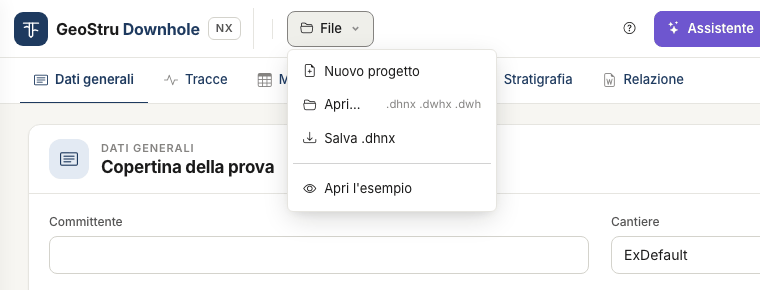
The File menu
| Item | What it does |
|---|---|
| New project | Empties the project in the session. |
| Open… | Opens a .dhnx file, or a .dwhx / .dwh file of the desktop program. |
| Save .dhnx | Downloads the project to your computer. |
| Open the example | Loads the example project: 30 receivers, 5 seismic layers. |
New, Open and the example replace the project in the session. If there is anything to lose, a strip below the bar asks for confirmation: what you have not saved to a file will be lost.
The .dhnx file
Save .dhnx downloads a single file with the whole project:
- general data, geometry and measurement table;
- options (method, unit weight, depths for Vs,eq);
- seismic layers of both methods and stratigraphy;
- the rows of the Traces tab, the picked times and the view options;
- the sections chosen for the report;
- the traces, within the limit described below.
Results are not in the file: they are recomputed on opening, always with the current version of the program.
Before downloading, the app saves the tab you have on screen: the file includes your latest change.
Traces in the file
Traces travel inside the .dhnx as long as, all together, they do not exceed 30 MB.
Beyond that limit the file carries only the references to the traces: rows, depths and picked times are there, the recordings are not. The app tells you twice: in the Traces tab, as soon as the survey goes over the limit, and when you save.
When you reopen such a file, the Traces tab lists the files to upload again. Drop the same files once more: they are reattached to their rows, with no new rows, and the picked times are still in place.
Keep the original files
Always keep the original acquisition files together with the .dhnx: for a large survey
they are the only safe copy of the traces.
A .dhnx file can be opened up to 40 MB.
Opening a desktop project
File → Open… also reads the projects of the Downhole desktop program: .dwhx and
.dwh, up to 2 MB. The project is converted; the original file is not modified, and the
app does not write desktop files.
What is imported
- test geometry and measurement table (depth, Tp, Ts);
- automatic or assigned unit weight, with the γ values per measurement;
- seismic layers of the direct method and of the interval method: base, lithology, description, colour;
- stratigraphy and water table depth;
- general data: client, site, location, date, operator, person in charge, description, notes, coordinates.
What is not imported
| Not imported | What happens |
|---|---|
| Patterns made from an image file | They were paths on the disk of whoever created the project. The pattern of the lithology is kept. |
| Logo | Add it in the Word document. |
| Chart colours, DXF settings, margins and text heights, legend positions | They are settings of the desktop program, not of the test. |
| Company details | They are not used. |
| Saved results (intercepts, unit weights) | They are recomputed. |
Traces and desktop acquisition files (.dsgx) |
Upload the SEG-2 or text files again in the Traces tab. |
After opening, blue strips at the top list what did not come in or was corrected. The most common one: “The base of seismic layer … (30.11 m) was beyond the last measurement and was brought back to 30 m”. The desktop program put the base of the last layer at the slant distance of the last receiver; Downhole NX brings it back to its depth.
Numbers may differ from the desktop version
On the same file some results change, because Downhole NX fixes some defects of the desktop program. Reason and effect of each difference are in Validation and differences from the desktop version.
GeoDropbox
The GeoDropbox button, in the top bar, opens your projects in the GeoStru cloud:
- it saves the current project as a
.dhnxin a GeoDropbox project; - it opens a
.dhnx, or a desktop.dwhx/.dwh, saved there.
That way you find your work from any workstation and share it with your office. As with Save .dhnx, the app stores the tab on screen first. GeoDropbox is a service separate from the app credits.
The session
The project stays in the session while you work. After 30 minutes of inactivity the session expires and the project is no longer in memory; the same happens when the service is updated.
Once the session has expired the app does not work on an empty project: it says “The
session has expired and the project is no longer in memory: reopen the saved file. Nothing
was written or charged”. Reopen your .dhnx and carry on.
Two habits keep you from losing work:
- save the
.dhnx(or to GeoDropbox) every time you finish a step: the picked times, the seismic layers; - work on the same project in one browser tab only. If the project changes elsewhere, the app flags it and does not save what you had on screen: reload the page.
Found an error on this page? Let us know or open a Pull Request.