Measurements and test geometry
The Measurements tab holds everything the calculation reads: the test geometry and the depth / Tp / Ts table. Times come from the Traces tab, or you type or paste them here.
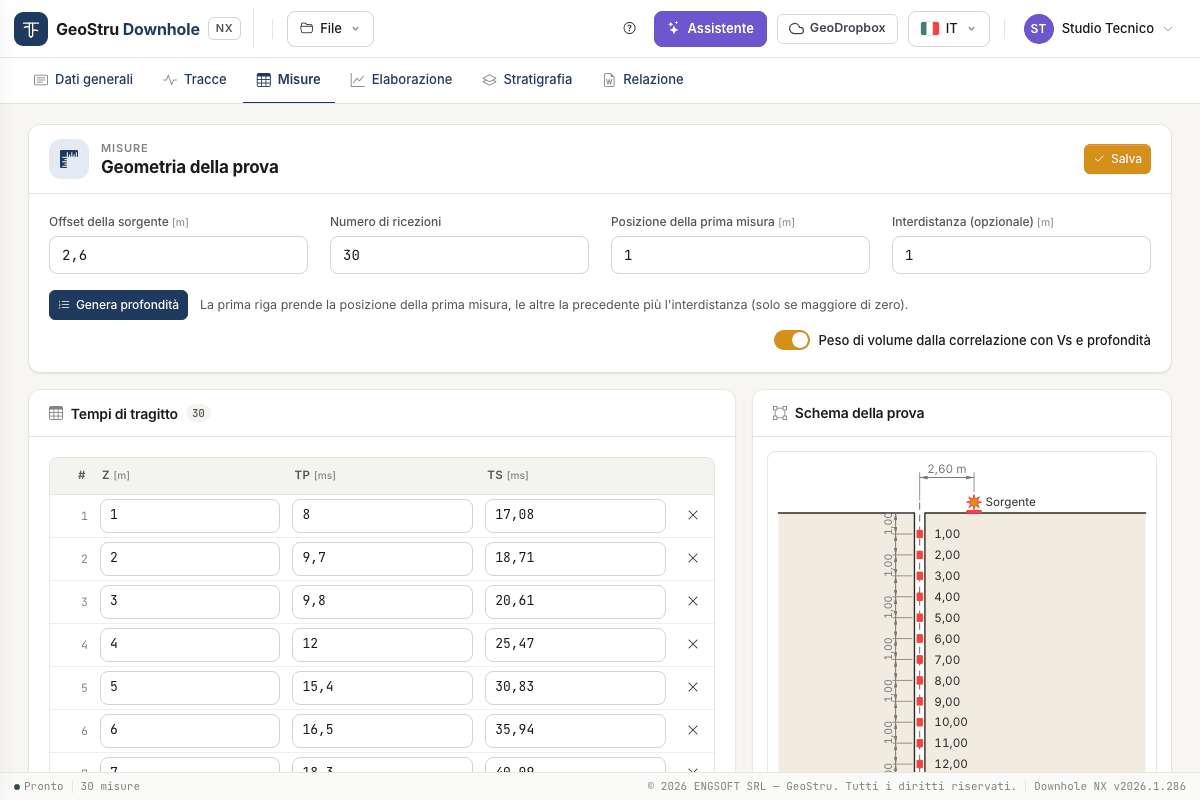
Test geometry
| Field | Meaning |
|---|---|
| Source offset [m] | Horizontal distance d between the source and the borehole axis. It enters the correction of the times. |
| Number of receivers | How many rows the table should have. |
| Depth of the first measurement [m] | Depth of the first receiver position. |
| Spacing (optional) [m] | Step between one receiver position and the next. |
The last three fields are there to generate the depth column; the calculation reads the depths written in the table, not these fields. The source offset, on the other hand, goes straight into the calculation: always check it.
Generate depths brings the table to the number of receivers given. The first row takes the depth of the first measurement, the others the previous one plus the spacing. With zero spacing the depths already typed are kept. Times already in the table are not touched.
If the number of receivers is lower than the existing rows, the app asks for confirmation before removing the rows at the bottom.
The travel-time table
One row per receiver position:
- Z [m] — depth of the receiver below ground level;
- Tp [ms] and Ts [ms] — travel times from source to receiver, as read on the traces (not corrected);
- γ [kN/m³] — only with an assigned unit weight (see below).
Depths must be positive and strictly increasing.
A time equal to zero means “not measured”. The corresponding column shows “--” in the results and the rest is computed all the same: an S-only test is processed by leaving all Tp at zero.
Add row appends a row, × removes one.
Pasting from a spreadsheet
Paste from spreadsheet opens a text box. Copy the cells from the sheet and paste them there:
- one row per measurement: Z, Tp, Ts and, optionally, γ;
- columns separated by tab or semicolon;
- decimals with comma or dot.
Import replaces the table with the pasted rows. Then press Save.
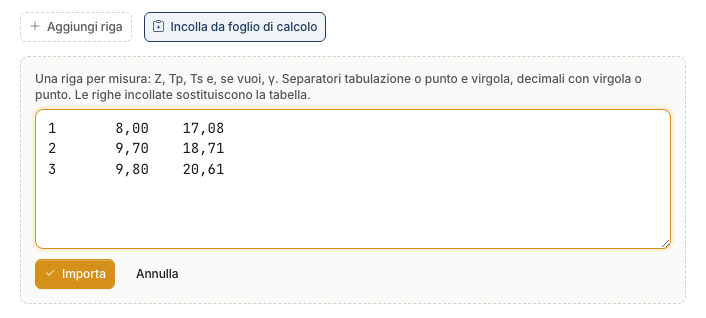
You can also paste a block of cells straight into a cell of the table: rows are filled from that one down.
Saving
Save, at the top right, stores geometry and table. Until you save, Unsaved changes shows next to the button. If you switch tab with pending changes, the app saves them first.
If a row has an error (a depth out of order, a negative time), after saving a red strip above the table points to the row to fix.
Unit weight: automatic or assigned
The Unit weight from the correlation with Vs and depth switch decides where γ comes from; γ is needed for the moduli G, Ed, E, Ev.
On (default). γ is estimated for each layer and interval from an empirical correlation with Vs and depth. It is an estimate: the formula is in Theory.
Off. The table gets a γ column and you type the unit weight at each receiver position, for instance from laboratory tests.
- In the interval method each interval uses the γ of its receiver position.
- In the direct method each seismic layer uses the average of the γ values of the receiver positions it contains.
- Where γ is missing, γ and the moduli show “--”. Velocities and Poisson's ratio do not depend on γ and are computed anyway.
Test layout
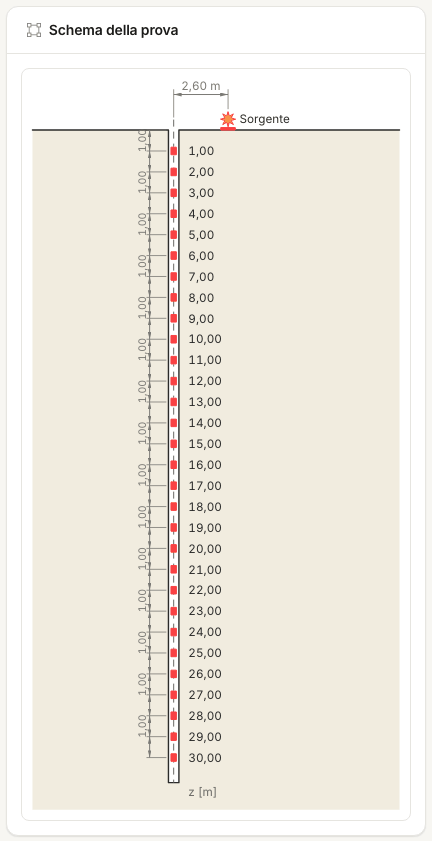
On the right, the Test layout draws the borehole, the source with its offset and the receiver positions at the depths of the table. It is redrawn when you save. It lets you check at a glance that geometry and depths are what you meant; the same drawing goes into the report and can be exported to DXF.
Found an error on this page? Let us know or open a Pull Request.