Quick start (5 minutes)
Take the full tour with the example project: a test with 30 receivers at 1 m spacing, from 1 to 30 m, the source 2.6 m from the borehole and five seismic layers. There is nothing to upload.
1. Open the example
Go to nx.geostru.ai/downhole with your GeoStru account. The app opens on the General data tab with an empty project.
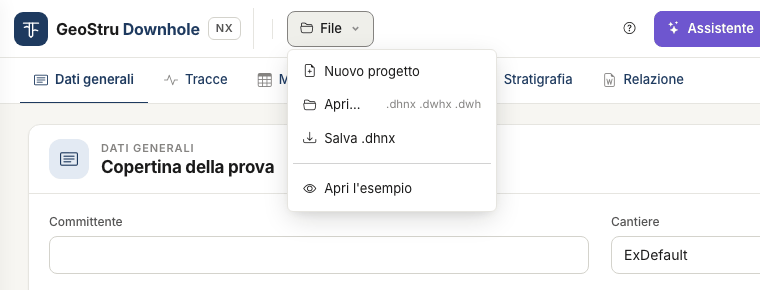
Open the File menu and choose Open the example. If a project is already in the session, a strip below the bar warns that it will be replaced: press Confirm.
2. Look at the measurements
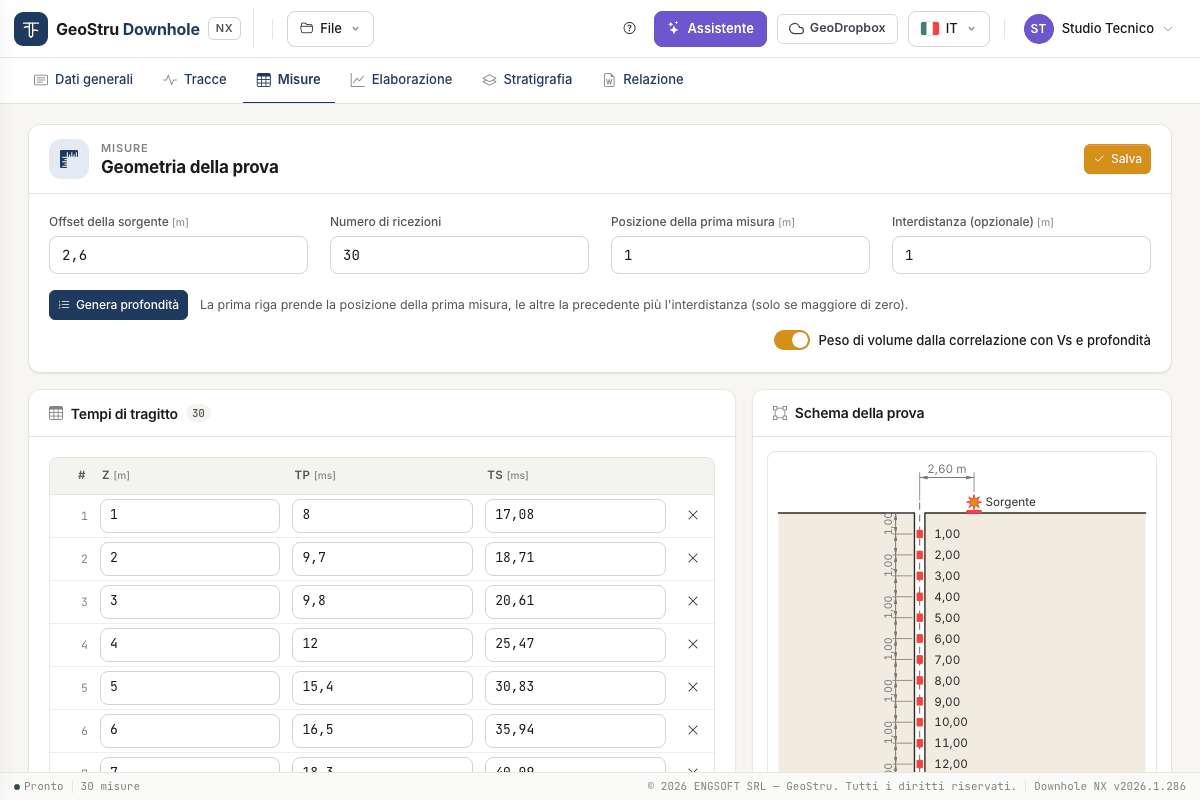
Open the Measurements tab. At the top is the Test geometry: source offset 2.6 m, 30 receivers, first measurement at 1 m, spacing 1 m. Below it, the Travel times table with depth Z and times Tp and Ts in milliseconds; on the right, the Test layout.
3. Read the processing
Open the Processing tab. There is no “Calculate” button: the results always follow the data.
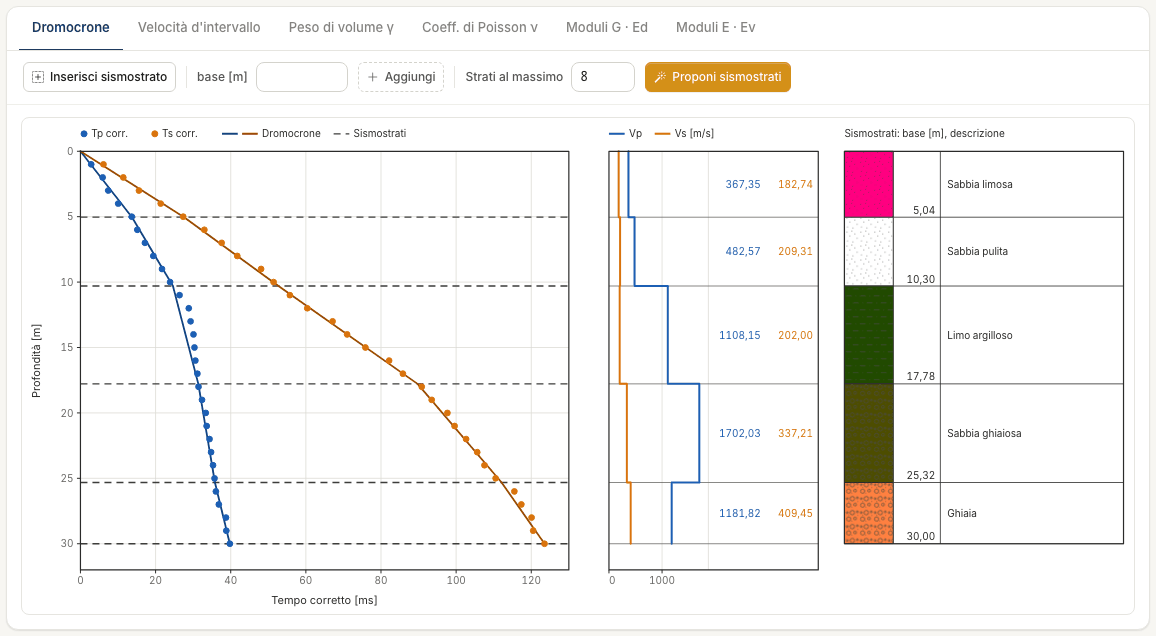
At the top right you read Vs,30 = 242.86 m/s, computed between 0 and 30 m. Below it, the Travel-time curves chart with the corrected times of P waves (blue) and S waves (orange) and the five dashed lines of the seismic layers; next to it, the Vp and Vs profile per layer and the seismic-layer column.
4. Try moving a seismic layer
- Press Insert seismic layer and click on the chart at about 12 m: a dashed line appears, and a row in the Seismic layers of the direct method table. Leave with Esc.
- Drag the line up or down: velocities and moduli of the two neighbouring layers update when you release it.
- To remove it, press the bin in its row and then Delete.
Vs,30 stays at 242.86 m/s: in the direct method it does not depend on where you put the layers. The reason is in Processing.
5. Have the seismic layers proposed
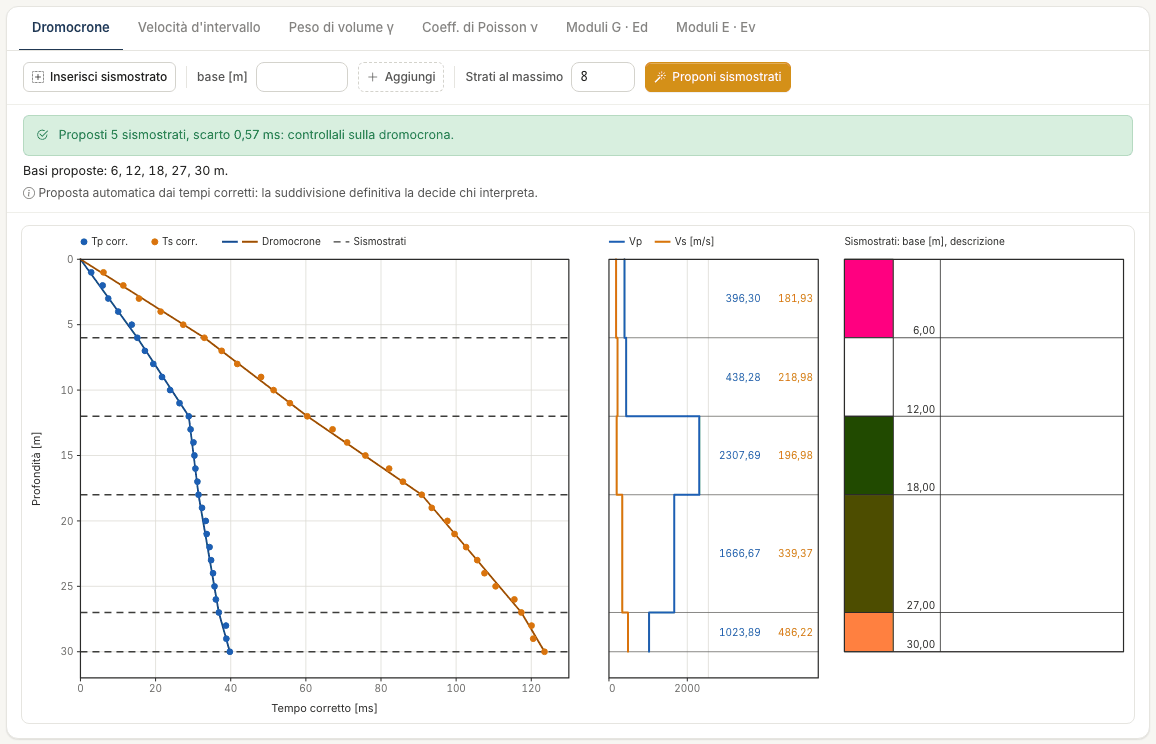
Above the chart press Propose seismic layers. The example already has its layers, so a strip shows the proposed bases, 6, 12, 18, 27, 30 m, and asks whether to replace them: press Replace, or Keep mine to leave everything as it is.
The proposal is the subdivision that best follows the corrected times; the person who interpreted the test had chosen 5.04 – 10.30 – 17.78 – 25.32 – 30 m. Vs,30 is still 242.86 m/s. Details in Processing.
6. Switch to the interval method
At the top right press Interval. The chart becomes Interval velocities and the Interpretation of the measurements table shows Vp, Vs, γ, ν and the moduli for each receiver. Import from the direct method brings the five seismic layers here, snapped to the measurement depths. Go back to Direct when you are done.
7. Generate the report
Open the Report tab, leave on the sections you need and press Generate Word. The browser downloads the document.
This action uses credits
Generate Word and Export DXF use NX credits; everything else in this guide is free. If generation fails, nothing is charged.
8. Save the project
File → Save .dhnx downloads the project to your computer. Do it before closing: the project lives on the server only for the length of the session.
With your own data
- You have the recorded traces: File → New project, then the Traces tab to upload them and pick the times, by hand or starting from Propose the times.
- You already have the times (from a spreadsheet or a test report): go to the Measurements tab and use Paste from spreadsheet.
- You have a desktop project (
.dwhxor.dwh): File → Open…. See Files, desktop projects and GeoDropbox.
Found an error on this page? Let us know or open a Pull Request.