Quick start (5 minutes)
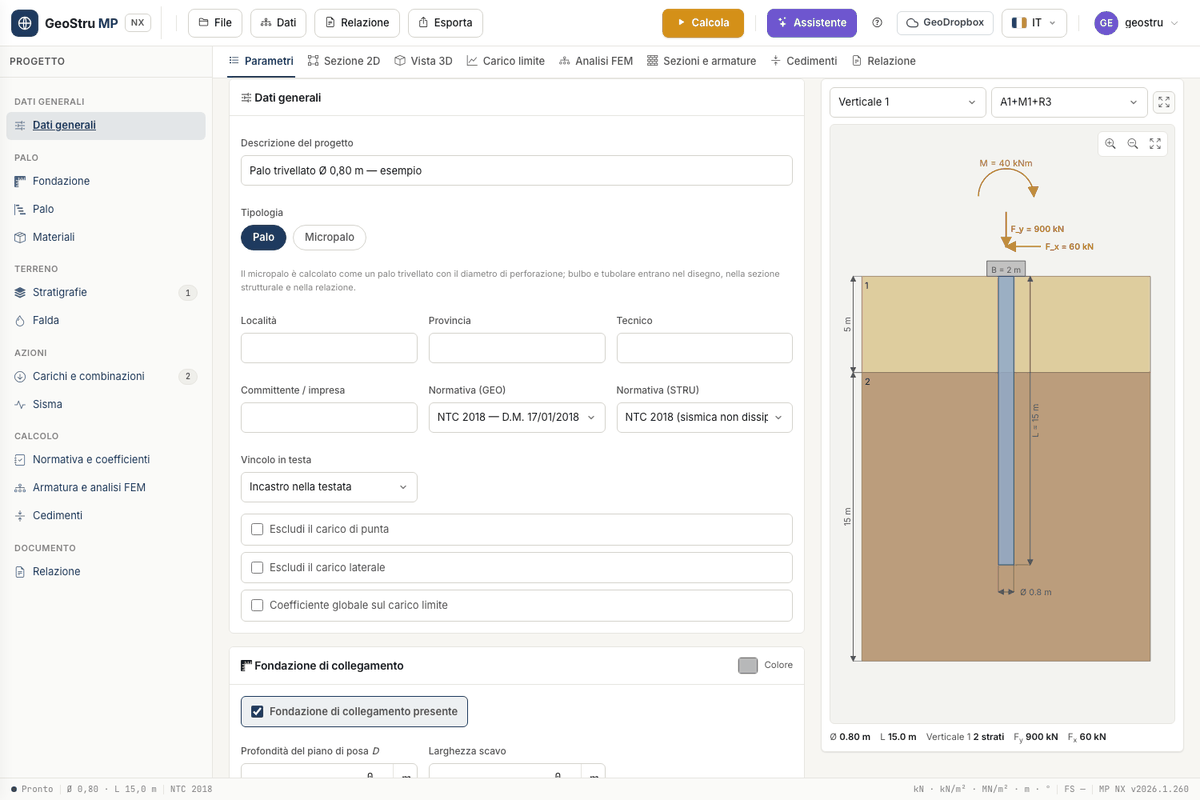
When you first open it, MP NX shows a project that is ready to calculate: a bored pile Ø 0.80 m, L = 15 m, with a pad footing, one investigation vertical of two layers (silty sand and sandy clay) and two load combinations. Use it for a complete tour, then replace it with your own data.
1. Open the app
Go to nx.geostru.ai/mp with your GeoStru account. The window has three parts: the project tree on the left, the tabs in the middle (Parameters, 2D section, 3D view, Ultimate load, FEM analysis, Sections and reinforcement, Settlements, Report), and the top bar with the File, Data, Report and Export menus and the Calculate button.
In the Parameters tab each item of the tree takes you to its card. The preview on the right redraws pile, layers, water table and loads at every change; the two drop-downs above the drawing choose the vertical and the combination shown.
2. Check the data
Scroll through the cards without changing anything: General data (type, design code, head restraint), Connecting footing, Pile, Materials and reinforcement, Stratigraphies and investigation verticals, Water table, Loads and combinations. Combination "A1+M1+R3" applies Fy = 900 kN, Fx = 60 kN and M = 40 kNm at the head; "SLE" applies 600 kN vertically.
What the first calculation costs
In the opening project the FEM analysis is enabled: Calculate charges 8 + 5 credits. For the ultimate load alone (8 credits) untick Run the FEM analysis and the section design with Calculate, in the Reinforcement and FEM analysis card.
3. Calculate
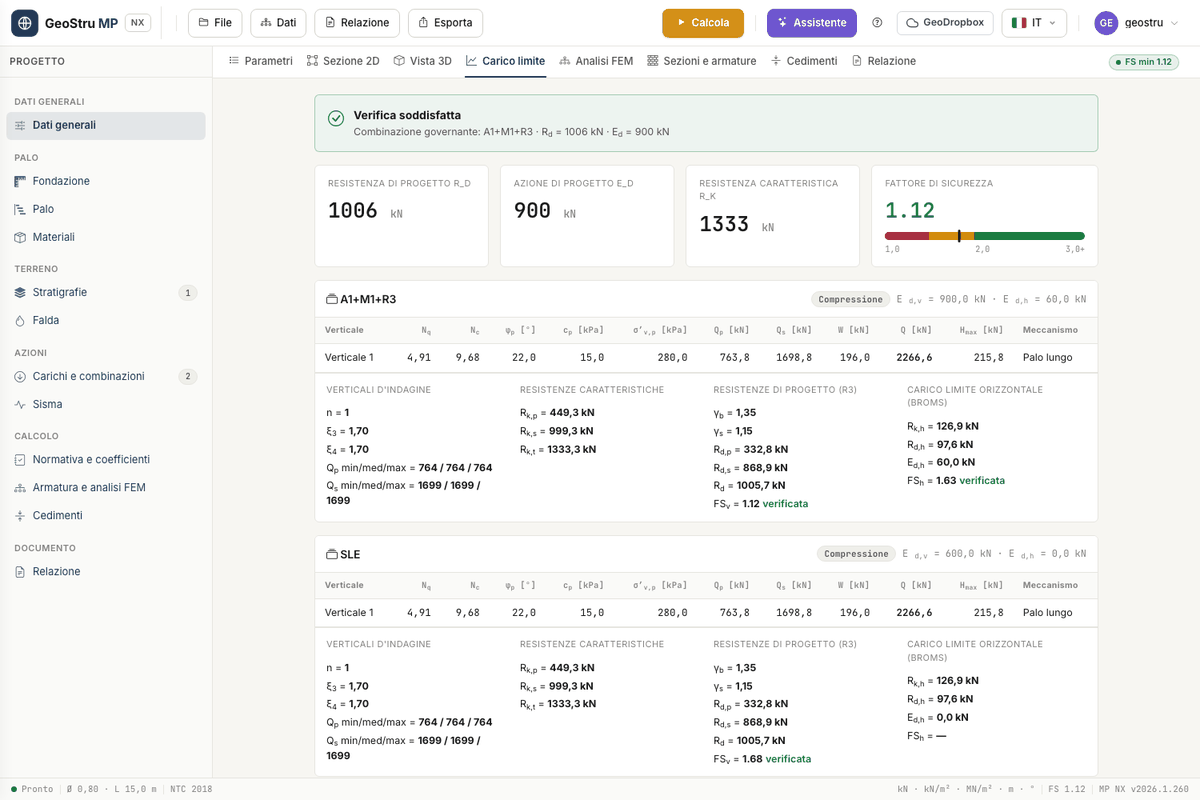
Press Calculate, top right. The page reloads with the results; next to the tabs the FS min badge appears, green when all checks are satisfied.
4. Read the ultimate load
Open the Ultimate load tab. At the top you find the outcome and the Governing combination, then four tiles: Design resistance Rd, Design action Ed, Characteristic resistance Rk and Safety factor. Below, one card per combination with Nq, Nc, Qp, Qs, the weight W, the ultimate load Q and Broms' Hmax. The full reading guide is in Ultimate load.
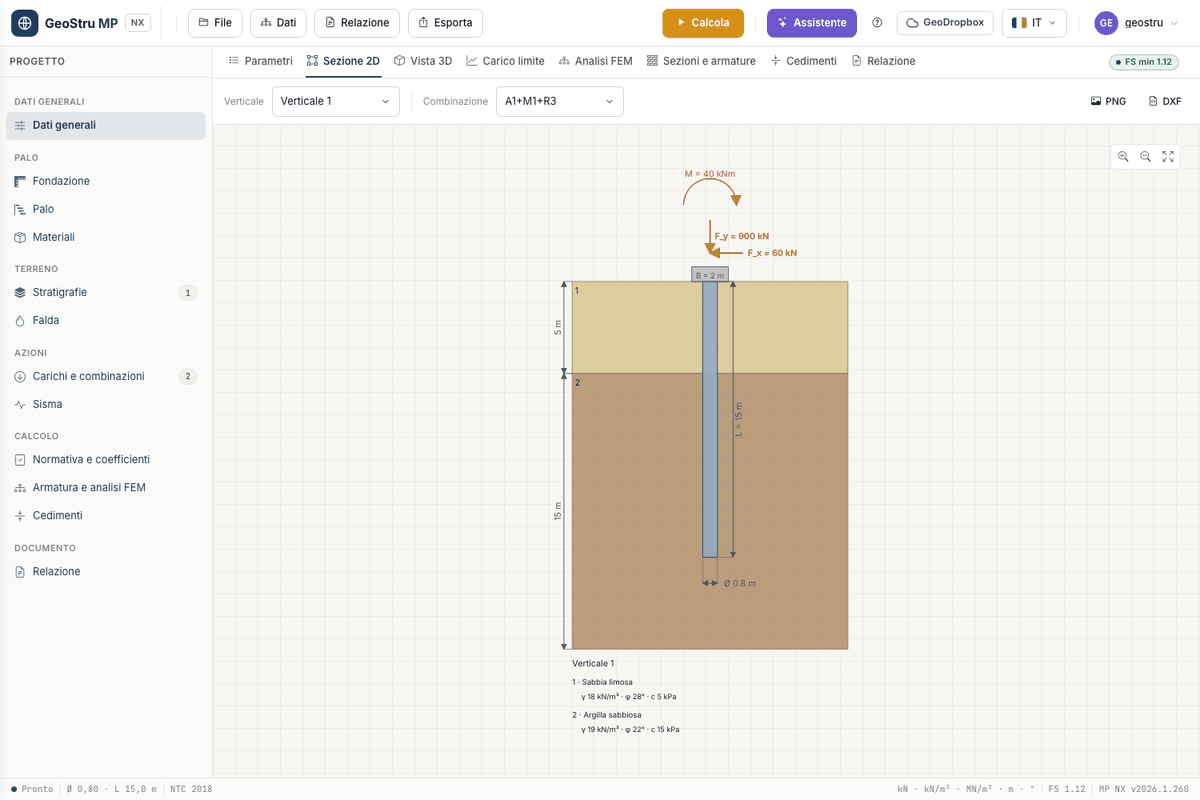
With the FEM enabled, also look at FEM analysis (diagrams and table per node) and Sections and reinforcement (ULS checks, cage, bar schedule). The 2D section tab shows the dimensioned drawing, with the PNG and DXF buttons.
5. Generate the report
Open the Report tab: the preview is free and follows the project. DOCX (or PDF) downloads the document; the charge is applied only once the file has been produced.
6. Save the project
File → Save downloads the project as an .mpnx file; File → Open loads it
back. Alternatively use the GeoDropbox button to keep it in the cloud. Until you save,
the bar shows Unsaved changes.
What next
To start from a different case, File → New project creates an empty project. Or download one of the eight example projects from the ? button (Resources tab) and open it with File → Open.
Found an error on this page? Let us know or open a Pull Request.