Report, exports and assistant
Report preview
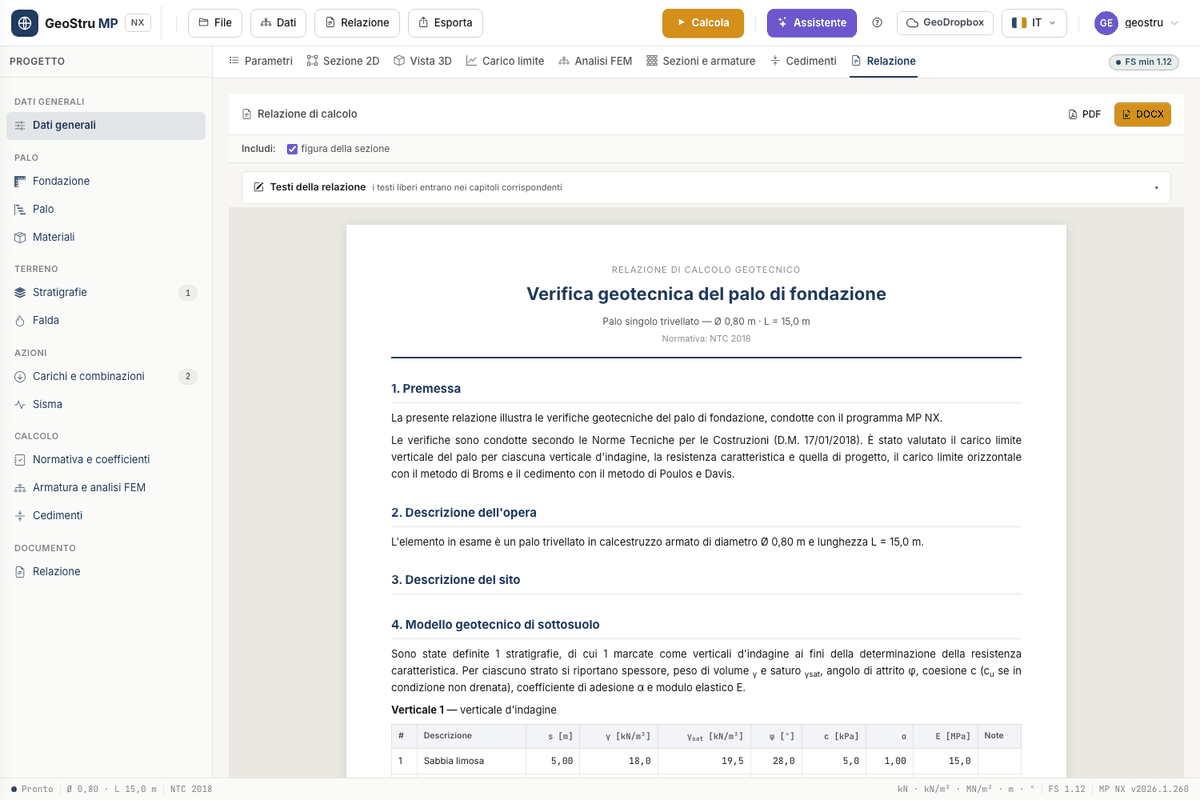
The Report tab shows the preview of the document, updated from the project and from the last calculation. The preview is free: use it to check texts and tables before generating the file.
The report follows this outline: foreword; description of the work and of the site; geological model and site investigation; subsoil geotechnical model, with the section figure; the pile and the materials; design actions; calculation method and factors; ultimate load of the pile; characteristic and design resistances; ultimate lateral load (Broms); pile settlement (Poulos and Davis); structural analysis of the pile; section check and design; reinforcement cage and bar schedule; construction requirements; conclusions; warnings; references. The chapters on FEM, section and cage appear only when the analysis has been run.
The Include: section figure box decides whether the 2D section goes into the document.
Free texts per chapter
Open Report texts to write your own texts: Type of work, Foreword, Description of the work, Site description, Geological model, Site investigation, Calculation model, Construction requirements and Conclusions. Each text goes into the corresponding chapter; with the include box next to the title you leave out the optional chapters. The texts are saved with the project.
Word and PDF
Generate the file with the DOCX and PDF buttons of the tab, or from the Report menu: Word (.docx), PDF and Word 97-2003 (.doc). The report costs 10 credits, charged only once the file has been produced. The document comes out in the interface language, Italian or English.
Exports
| What | Where | Credits |
|---|---|---|
| Project (.mpnx) | Export menu or File → Save | 0 |
| Section (PNG) | Export menu, or the PNG button of the 2D section tab | 0 |
| DXF drawing (section, diagrams, reinforcement) | Export menu, or the DXF button of the 2D section tab | 10 |
| Cage DXF | Sections and reinforcement tab | 10 |
The DXF drawing puts side by side the section, the five FEM diagrams and the reinforcement, with the bar schedule. The Cage DXF contains the shop drawing alone, with the schedule. Drawings are in metres.
Provenance signature
Exported files carry a signature identifying their origin. The DXF has a comment at the top
of the file, which CAD programs ignore. The Word document has author and keywords in its
properties, with a fingerprint of the form nx-…. The report footer carries the provenance
notice with links to the terms of service and to the validation page.
Project file and GeoDropbox
The project is an .mpnx file: it holds the data, the materials archive, the cage
rules and the report texts, not the results. File → Save downloads it with the current
name, Save as asks for the name, Open loads it back. The name of the current file is
shown in the status bar.
The GeoDropbox button opens and saves projects in the GeoStru cloud, so you find them from any workstation. The GeoDropbox subscription is separate from app credits.
AI assistant
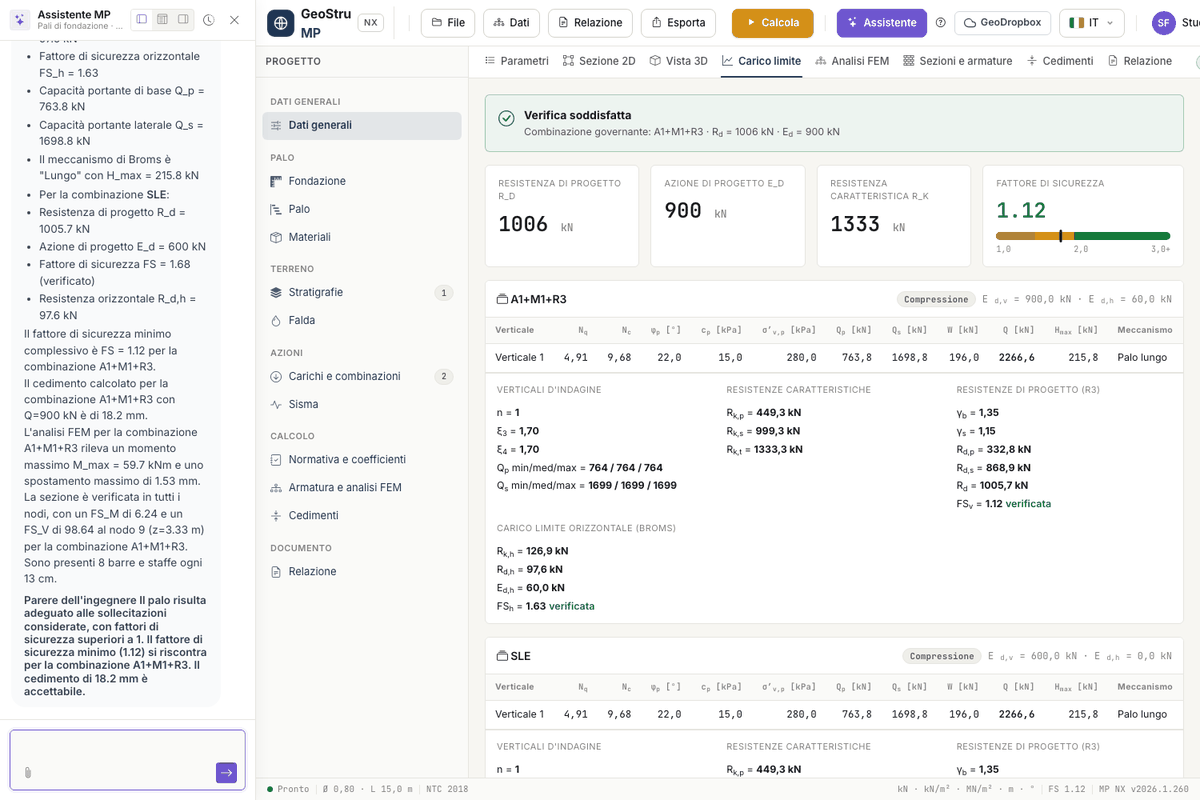
The Assistant button opens the chat beside the project. The assistant:
- reads the current project and the results, and interprets them;
- explains the methods: Nq, ξ and γR factors, Broms, Poulos and Davis, FEM, section check;
- carries out a geotechnical review of the data;
- fills in the project from an attached document: with the paperclip you attach, for example, a geological report in PDF, and the assistant proposes stratigraphy and parameters;
- opens a support ticket.
Each message costs 3 credits, charged only if the answer arrives.
Answers generated by an AI system
The assistant's answers are generated by an artificial intelligence system and may contain errors. Data filled in from a document and opinions on the results must be verified by the designer, who remains responsible for the calculation.
Found an error on this page? Let us know or open a Pull Request.